 PlicoPDF
Add a watermark and page numbers to a PDF offline
PlicoPDF adds a text watermark, page numbers, headers and footers to a PDF on your computer. The result is a new PDF; your original file is not changed.
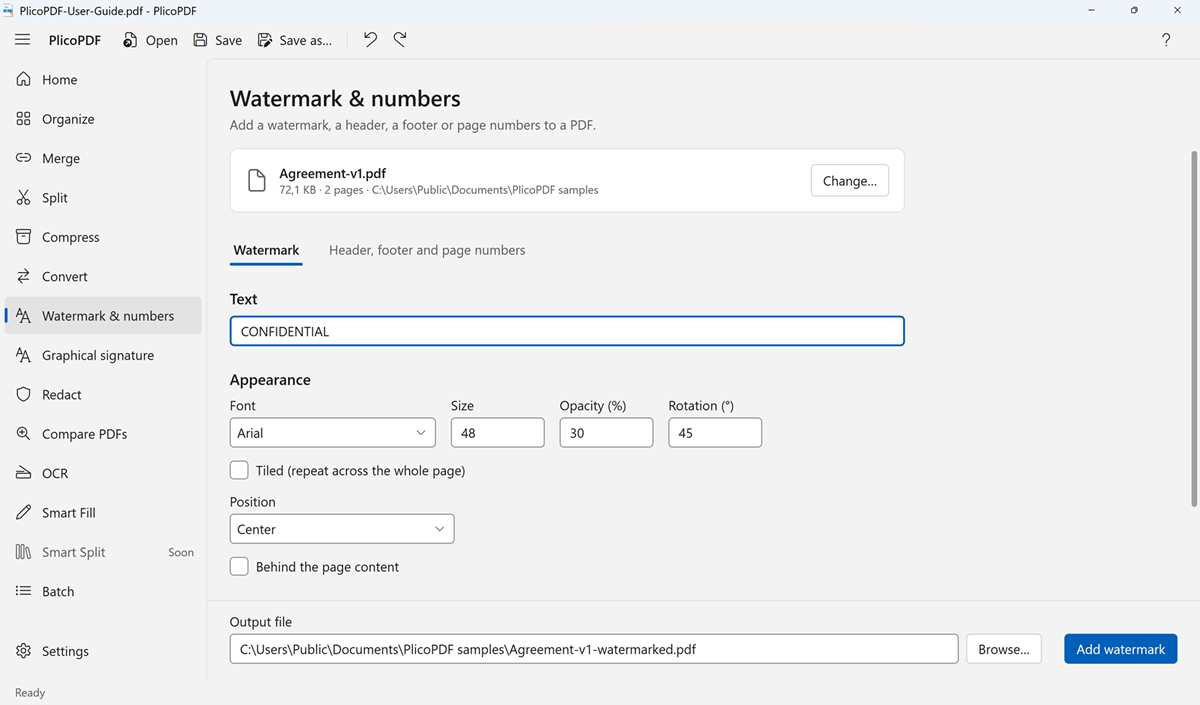
How to add a watermark
- Open PlicoPDF, choose Watermark & numbers, then the Watermark tab.
- Choose the PDF, or drop it onto the window.
- Type the text, for example CONFIDENTIAL or DRAFT, and set its appearance.
- Choose the pages: all of them, or only some, for example 1-3, 5.
- Click Add watermark. PlicoPDF saves a new PDF.
Watermark options
- Font, size, opacity and rotation.
- Position: one of nine positions on the page, or tiled to repeat it across the whole page.
- In front of the content or behind the page content.
The watermark is text. Adding an image as a watermark is not available.
How to add page numbers, a header or a footer
- In Watermark & numbers, open the Header, footer and page numbers tab and choose the PDF.
- Type the text in any of the six boxes: left, center and right, in the header and in the footer. Leave a box empty to skip it.
- Choose the font, the size and the pages, then click Add to pages.
In the boxes you can use these placeholders: {page} page number, {pages} total pages, {filename} file name, {date} date, {datetime} date and time. For example, {page} / {pages} in the footer gives 3 / 12.
Both tools are also in the More menu of Organize. To watermark or number many files at once, use Batch processing.
Free beta · Windows 10 and 11, 64-bit · about 107 MB · User guide (PDF, 2 MB)