 PlicoPDF
Process many PDF files at once, offline
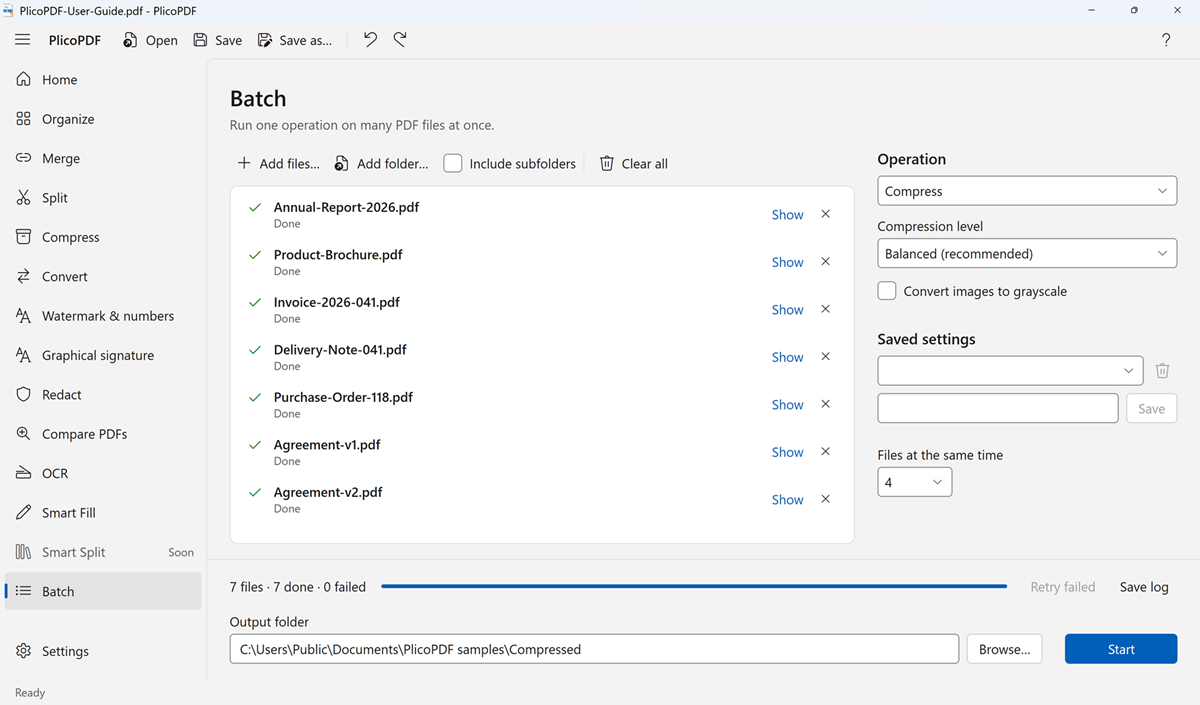
With Batch, PlicoPDF applies the same operation to many PDF files or whole folders on your computer. Each file gets its own result, and existing files are never overwritten.
Operations
- Compress, with the three levels and the grayscale option of Compress.
- Add a watermark: text, size, opacity, rotation, tiled.
- Add page numbers, header or footer: a centred header and a centred footer, with the same placeholders as Watermark and page numbers (the single-file tool also offers left and right positions).
- Remove document information: title, author, subject, keywords and creator. The pages are not changed.
- Export pages as images, in PNG, JPEG or TIFF at the resolution you choose.
- Split every N pages.
- Recognize text (OCR): searchable PDF or .txt file, in Italian and English, as in OCR.
How to process many PDFs
- Open PlicoPDF and choose Batch.
- Add files, or add a folder; tick Include subfolders to go deeper. You can also drop files and folders onto the window.
- Choose the Operation, its options and the output folder.
- Choose how many files at the same time to process, from 1 to 4, and click Start.
Safe for large jobs
- Results never replace existing files, and the original files are not changed.
- Every file shows its status: waiting, processing, done, failed or cancelled. A file that fails does not stop the others.
- You can cancel the run, retry failed files and save the log as a text file.
- Saved settings: give the current options a name and use them again later.
- When an operation creates several files per PDF (images, split), each PDF gets its own folder.
Batch processing is included in the free beta, with no limits on the number of files.
Free beta · Windows 10 and 11, 64-bit · about 107 MB · User guide (PDF, 2 MB)