 PlicoPDF
Organize PDF pages offline on Windows
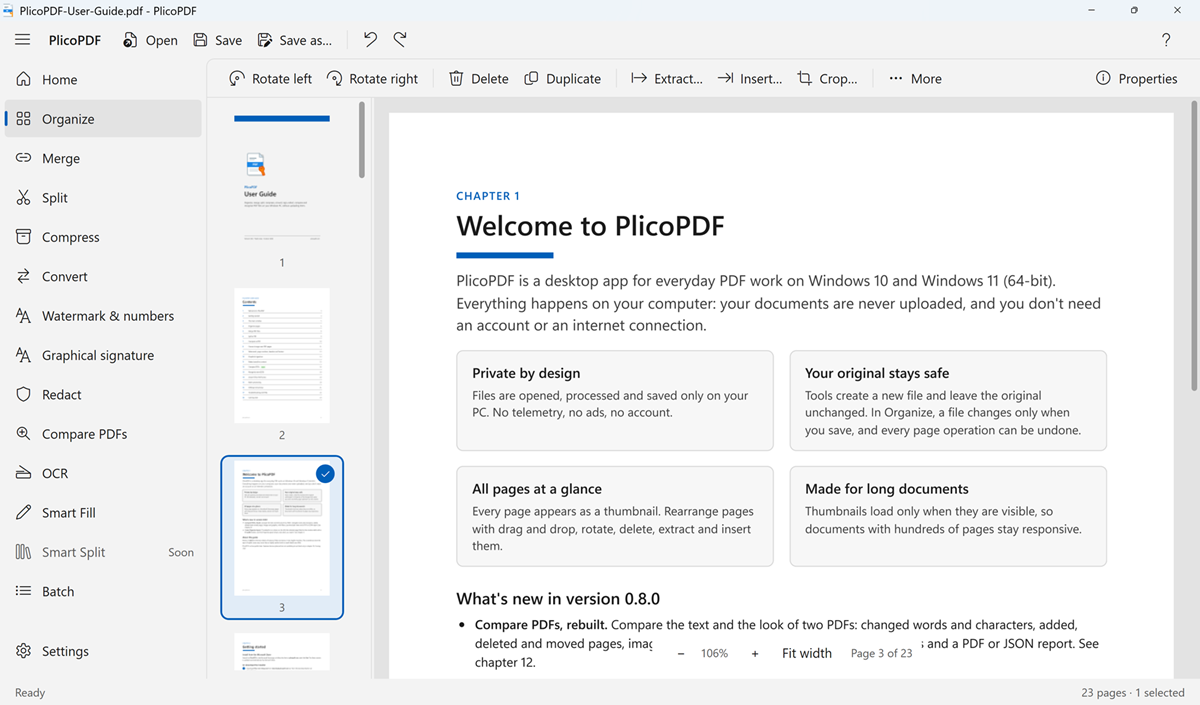
PlicoPDF shows the pages of a PDF as thumbnails in a column, next to the selected page fitted to the width of the window. Rearrange, rotate, delete or extract pages on your computer, without uploading the document.
How to organize the pages of a PDF
- Open PlicoPDF and choose Organize. Drop a PDF onto the window or open it with Ctrl+O.
- Select one or more pages. Ctrl+A selects them all.
- Drag the selected pages to their new position, or move them with Alt+↑ and Alt+↓.
- Use the toolbar to rotate, delete, duplicate, extract, insert or crop pages.
- Save with Ctrl+S, or save it under a new name with Ctrl+Shift+S.
What you see when you open a PDF
- The thumbnails of the pages in a single column. You can widen their pane.
- The selected page fitted to the width of the window, so it is easy to read.
- The Properties panel stays hidden until you click Properties, leaving more room for the page.
What you can do
- Reorder with drag and drop, also several selected pages at once. A bar shows where the pages will land, and the thumbnails scroll when you reach the edge.
- Rotate the selected pages by 90° to the left or to the right.
- Delete or duplicate the selected pages.
- Extract the selected pages to a new PDF. The open document does not change.
- Insert all the pages of another PDF after the selection, then delete the ones you don't need.
- Crop the selected pages by typing the area in PDF points, on the MediaBox, CropBox, BleedBox or TrimBox. Cropping does not delete content: what is outside the area is only hidden.
- Document information: in the Properties panel, view or edit title, author, subject, keywords and creator, or clear them all with one click.
- Zoom the page preview from 50% to 400% with the − and + buttons under the preview, or with the mouse wheel over it. Fit width, next to them, fits the page to the window again. The thumbnails keep their size: zooming the thumbnails is planned.
- Undo and redo every page operation, step by step, with Ctrl+Z and Ctrl+Y.
From the More menu you can also send the open document to Watermark and page numbers, PDF to images and OCR.
Large documents stay responsive
Thumbnails are drawn only for the pages you can see on screen, so documents with hundreds of pages open quickly and scroll smoothly.
Your original file is safe
Changes stay in PlicoPDF until you save. When you save, PlicoPDF writes a temporary file, checks it, and only then replaces the document. The file on disk is never touched before you save.
Free beta · Windows 10 and 11, 64-bit · about 107 MB · User guide (PDF, 2 MB)