 PlicoPDF
Convert PDF pages to images offline on Windows
PlicoPDF exports the pages of a PDF as PNG, JPEG or TIFF images on your computer. All pages or only the ones you choose, at the resolution you need. Nothing is uploaded.
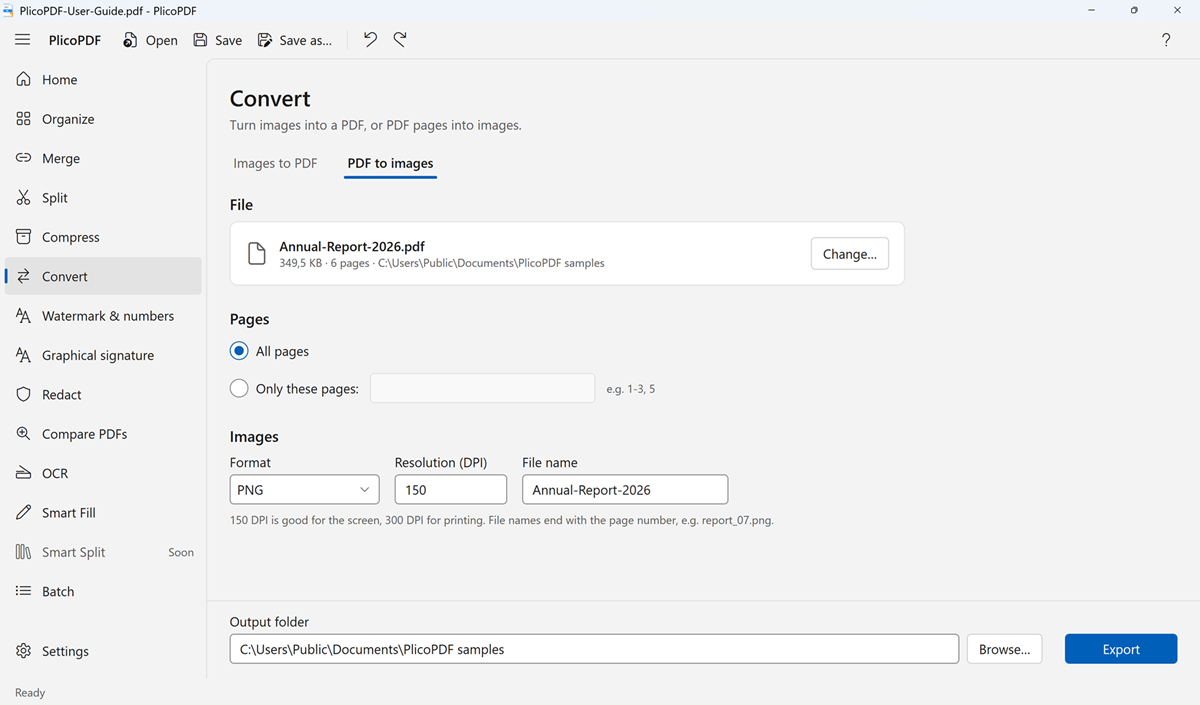
How to convert a PDF to images
- Open PlicoPDF, choose Convert, then the PDF to images tab.
- Choose the PDF, or drop it onto the window.
- Choose All pages, or Only these pages and type them, for example 1-3, 5.
- Set the format, the resolution and, for JPEG, the quality. Choose the output folder and, if you like, the file name.
- Click Export. Each page becomes one image file.
Image options
- Format: PNG, JPEG or TIFF.
- Resolution from 36 to 1200 DPI. 150 DPI is good for the screen, 300 DPI for printing.
- JPEG quality, to balance sharpness and file size.
- File name: every file ends with its page number, for example report_07.png.
You can also start from Organize (More › Export pages as images), and convert many PDFs at once with Batch processing. Need the opposite? See images to PDF.
Why convert offline
- Private. The PDF never leaves your PC.
- No limits from a website on the number of pages or the resolution.
- No account and no internet connection needed.
Free beta · Windows 10 and 11, 64-bit · about 107 MB · User guide (PDF, 2 MB)