 PlicoPDF
Fill in PDF forms with your saved details
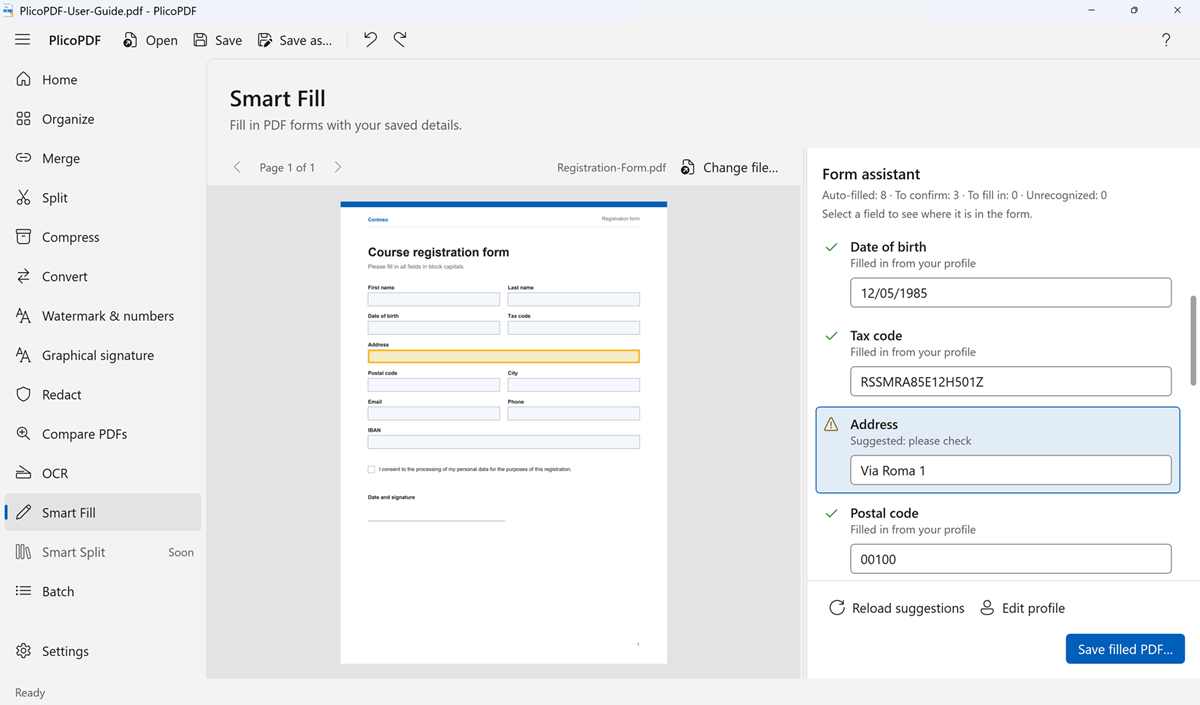
Smart Fill opens a fillable PDF form, recognizes its fields and suggests values from your personal profile. You review the proposed values before saving, and your details never leave your PC.
How to fill in a form
- The first time, save your details in the personal profile: Settings › Personal profile, or Edit profile in Smart Fill.
- Choose Smart Fill and open a PDF form.
- Check the list of fields. Select a field to see where it is on the page, and change any value you want.
- Click Save filled PDF…. PlicoPDF saves a new file; the original form is not changed.
You stay in control
Each field shows where its value comes from:
- Filled in from your profile, or Suggested: please check when the match is less certain.
- Not in your profile: please fill in, or Not recognized.
- Needs your confirmation: fields recognized as declarations, consents or signatures are never filled in automatically.
The personal profile
The profile holds personal details (name, date of birth, tax code), address, contact details (email, phone) and work and payment details (company name, VAT number, IBAN). It is used only to suggest values in PDF forms. It is stored only on this PC, encrypted with Windows data protection for your Windows account, and never uploaded. You can delete it at any time.
Which PDFs work
Smart Fill works with fillable PDF forms, the ones with form fields you can click and type into. If a PDF has no form fields, PlicoPDF tells you. Filling in PDFs that only have blank lines to write on is planned.
Free beta · Windows 10 and 11, 64-bit · about 107 MB · User guide (PDF, 2 MB)