 PlicoPDF
Add an image of your signature to a PDF
With Graphical signature, PlicoPDF places an image of your handwritten signature on a page of a PDF and saves a new copy. Everything happens on your computer.
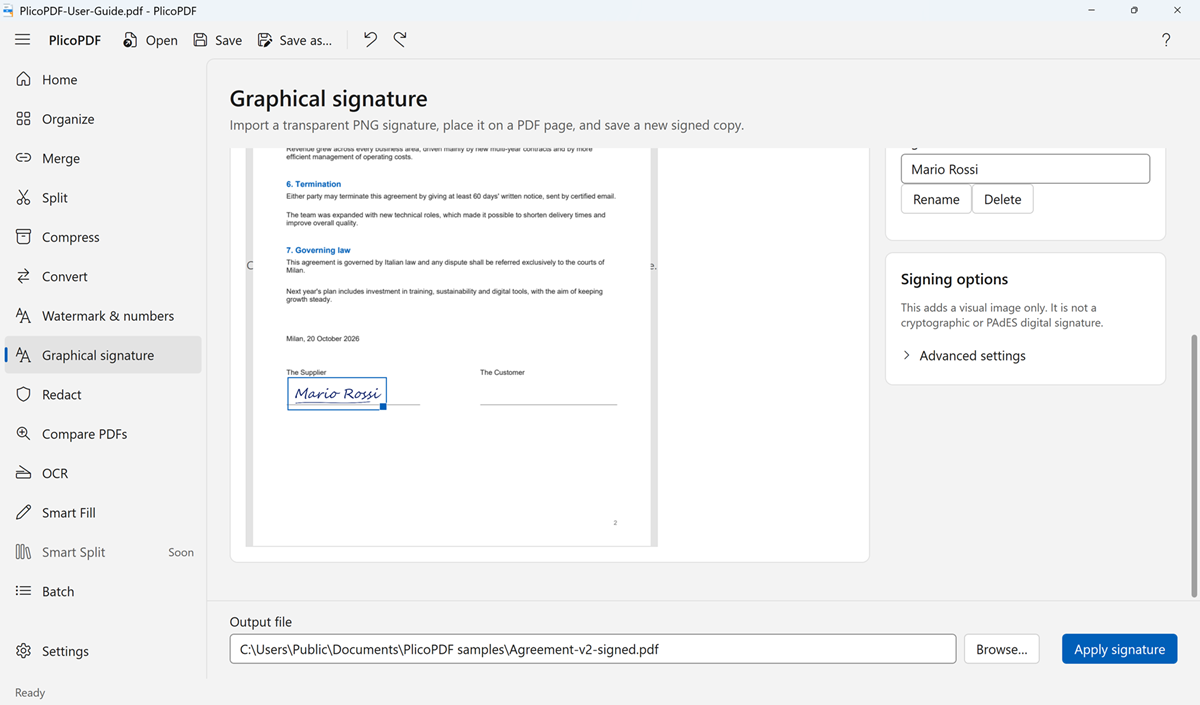
This is an image, not a digital signature. Graphical signature adds a picture of your signature to the page. It is not a cryptographic, qualified or PAdES digital signature: it does not prove who signed and does not protect the document against changes. Cryptographic digital signatures are not available in PlicoPDF.
How to add your signature
- Open PlicoPDF and choose Graphical signature.
- Click Import PNG… and choose an image of your signature with a transparent background. You only need to do this once.
- Choose the PDF and the page to sign.
- Drag on the page preview to place and size the signature. Drag it to move it; drag its lower-right handle to resize it.
- Choose where to save the copy and click Apply signature.
The signature goes on one page at a time. To sign another page, open the signed copy and apply it again.
Your signatures stay on this PC
- You can store several signatures, each with a name, and rename or delete them.
- They are stored encrypted with Windows data protection, for your Windows user only. They are never uploaded.
- Only PNG images with a transparent background can be imported.
The original is not changed
PlicoPDF always saves a new file and never replaces an existing one. The PDF you started from stays as it was.
Optional scanned look
Under Advanced settings you can make the whole copy look printed and scanned: every page becomes a 300 DPI color image with paper texture, skew, noise and blur, whose strength you set with one intensity control. The text of these pages can then no longer be searched, selected or copied, and no text layer is added; PlicoPDF asks you to confirm first. This option works on documents of up to 100 pages.
Free beta · Windows 10 and 11, 64-bit · about 107 MB · User guide (PDF, 2 MB)